Freescout
Freescout is the name of the software Rainbow HE Events uses for shared email addresses such as info@rainbowhe.events. It allows multiple users to share multiple mailboxes, see each others replies and assign emails to people to keep track of who's owning a conversation.
Tips
P.S. If you're new to Freescout skip this section and come back to it later!
- When assigning an email to someone, mark it as 'active' so it shows up in bold and on the other person's 'mine' list
- Don't reply directly to notification emails, while this is supported you can't be sure that someone else hasn't replied or that the formatting will be correct. Login to Freescout on the web and reply there.
Logging In
Freescout is accessed at https://contact.rainbowhe.events
You'll need an account created for you in order to login. Contact IT if you haven't got this or have forgotten your password.
Concepts
There are some concepts in Freescout which are useful to understand before using it. These differ from a normal email client in ways which let us track who is dealing with each email and if it needs further action or not.
Converstations
Each email that comes in is part of a conversation. This is similar to how Outlook or other email clients create threads. When a new email comes in it starts a new converstaion, then each reply gets added to the same conversation so you can see it all in one page.
Assigning Conversations
Each conversation can be assigned to someone. It starts as Anyone (Unassigned) and by default will become the person who first replies to the email. There is a dropdown box to edit this when sending a reply and also a button at the top of the page.


Conversation Status
Each conversation has a Status. This is used to track if it's waiting on another reply or if it's ended. Similar to assigning conversations to people it can be edited when sending a reply or with a button at the top of the page. There are 3 statuses:
- Active - A conversation actively waiting for us to respond to it
- Pending - A conversation we've replied to and are waiting for the customer to respond
- Closed - A conversation that's finished and we're not expecting a reply to
Instead of deleting emails we set them to this Closed status so that we have an archive of our previous correspondence.


Notes
As well as replying to a conversation you can add a note. A note will not be sent to the customer, instead it'll only be visible to other people with access to Freescout.

Reading Emails
Once logged in you will see any mailboxes you have access to. Clicking on the name of the mailbox will take you into it. Once in a mailbox you will see the "Unassigned" view. The menu on the left lets you change to several other views.
- Unassigned - All Active or Pending conversations which have not been assigned to a user
- Mine - All Active or Pending conversations assigned to you
- Starred - Any emails you've "starred"
- Drafts - Any replies or new emails which have been started but not sent
- Assigned - All Active or Pending conversations assigned to someone
- Closed - All closed conversations
- Spam - All conversations automatically or manually marked as spam
- Sent - All conversations started by us sending an outgoing email, rather than from an incoming one
- All - All conversations in the mailbox
Replying to Emails
To reply to an email you click on it to open it and at the top of the page click the Reply button:

This opens the text box and allows you to write your response and send it. You can click "Cc/Bcc" just above to text box to copy in an extra email address if required. To check which email address the reply is going To you can look on the right hand side of the page.
Sending New Emails
If you need to start a completely new conversation from Freescout click the New Conversation button underneath the list of views in the mailbox:

Moving Emails
Often an email might come into one mailbox when really it should be in another. For example an email might arrive at info@rainbowhe.events which should be in sales@rainbowhe.events.
Traditionally you might just forward this type of email however this has a couple of disadvantages. Firstly you end up with a duplicate of the email in Freescou and secondly the "From" address becomes the mailbox you forwarded it from.
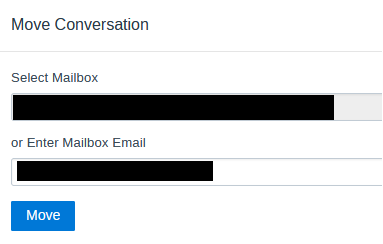
The solution is to instead move the email directly into the right mailbox. To do so click on the ellipse button and select Move:

Next you can either use the dropdown to select a mailbox which you have access to or if it's not listed just enter the email address into the box below.
Notifications
How are you going to know that there are new emails? Of course one option is to remember to check it regularly but you can also be notified of new emails arriving or being assigned to you.
You can modify your notification settings by going to Your Name in the top right > Your Profile > Notifications on the left:


Here you can choose how you get notified for lots of different things. The key ones are:
- There is a new conversation - A new converstations starts in any of your mailboxes
- A conversation is assigned to me - Someone else assigns a conversation to you
- To one of my conversations - A customer replies to an existing conversation assigned to you
You can pick to be notified by Email, Browser or Mobile.
Email notifications be emailed to you at the email address setup on your account. Emails will arrive from the mailbox address (e.g. info@rainbowhe.events). If you reply to one of these emails it will add it in the Freescout system and send it to the customer however this can be unreliable.
It's highly recommended to NOT reply directly to the notification email. Instead please either go directly to contact.rainbowhe.events or click the link to the the conversation in Freescout. This link will be the conversation ID which is usually a # followed by a 4 digit number: #1234.

Browser
We don't recommend relying on browser notifications. These will only work if you actively have Freescout open in your browser when the notification triggers.
Mobile
In order to get notifications on your phone you can install the Freescout app.
Once downloaded enter the URL "contact.rainbowhe.events" and login.